Getting started with Benchmarq
Benchmarq diagnoses your website's technical readiness for generative search engines, answer bots, and autonomous AI agents. This guide walks through the complete workspace workflow—from initial onboarding and scan execution to report analysis, remediation tracking, and competitor benchmarking.
Step-by-step walkthrough
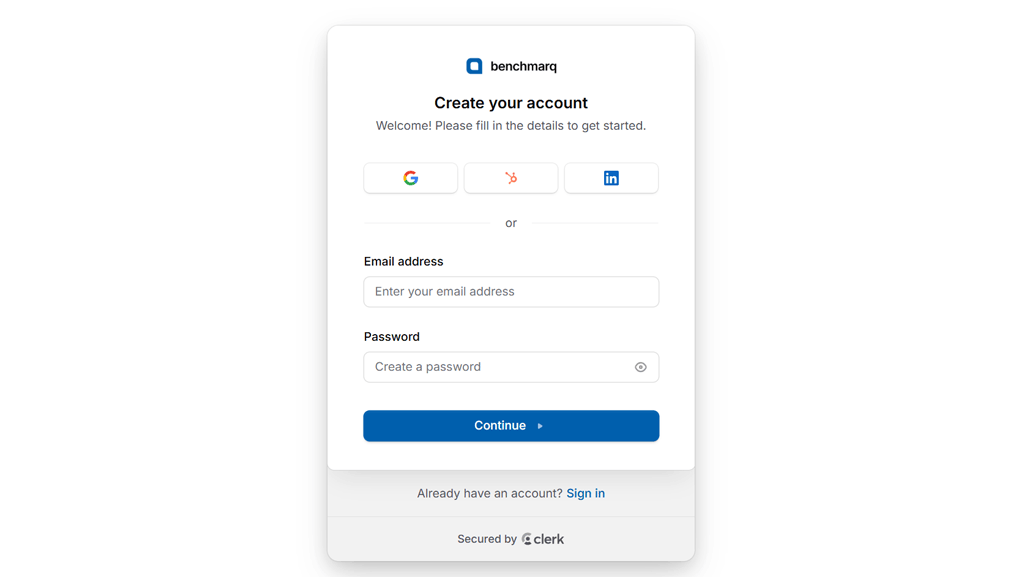
Create your workspace account
Register for free at app.benchmarq.io using Google, LinkedIn, HubSpot, or email authentication.
Your authenticated workspace is provisioned immediately with zero credit card requirements.
After completing a single email confirmation, you are ready to launch your first baseline diagnostic audit.
Configure and launch a scan
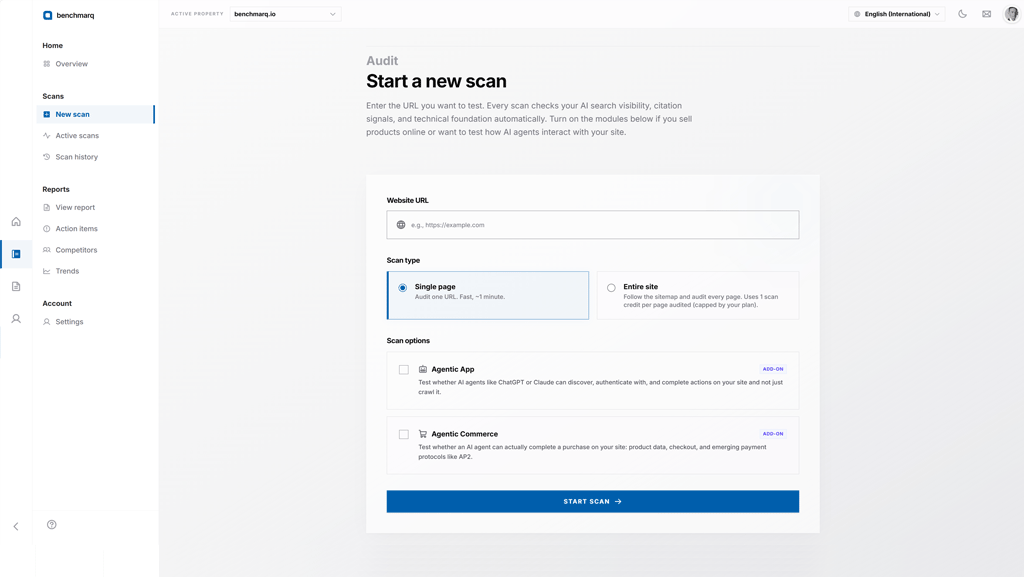
Open the new scan dialog and enter the public URL or domain you wish to audit.
Choose your scan scope: Single page audits a specific URL (1 page credit), while Entire site discovers and audits all URLs in your XML sitemap (deducting 1 credit per scanned page).
Every scan evaluates the core four-track diagnostic suite (GEO, AIO, AEO, and CORE) to calculate your composite score.
Optionally toggle specialized modules: Agentic Apps (ARO) to audit OpenAPI schemas and agent authentication, and Agentic Commerce (ACO) to test merchant feeds and autonomous checkout protocols like AP2.
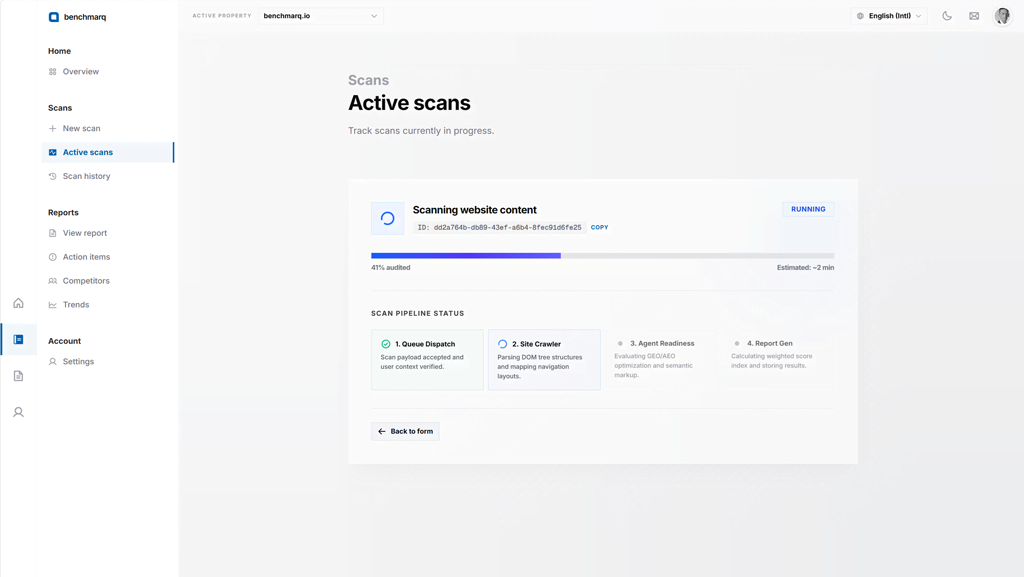
Monitor real-time pipeline execution
The live pipeline view displays progress across each phase: queueing, edge crawling, 200+ deterministic test executions, and final report compilation.
Standard single-page audits complete in under 2 minutes, running automated assertions against robots directives, JSON-LD graphs, answer blocks, and server response metrics.
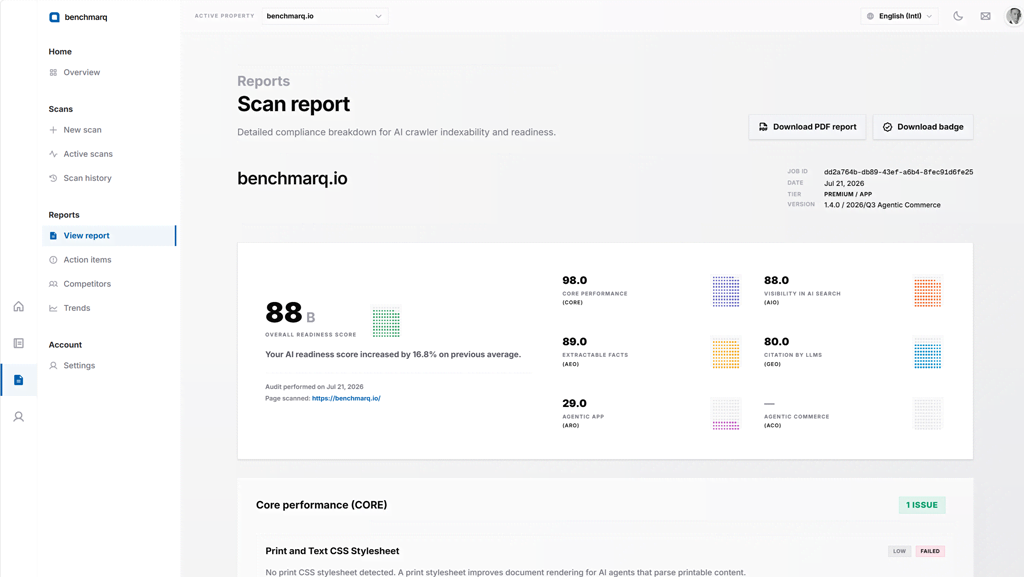
Inspect composite scores and track breakdowns
When the scan finishes, open the audit report to inspect your composite 0–100 AI readiness score and individual track scores for GEO, AIO, AEO, and CORE.
Each track isolates specific discovery layers, showing exactly where your site excels and where crawler friction or schema issues exist.
Drill into specific check deductions to view code-level guidance, or export structured JSON and interactive HTML reports for engineering backlogs.
Manage multi-domain dashboard portfolios
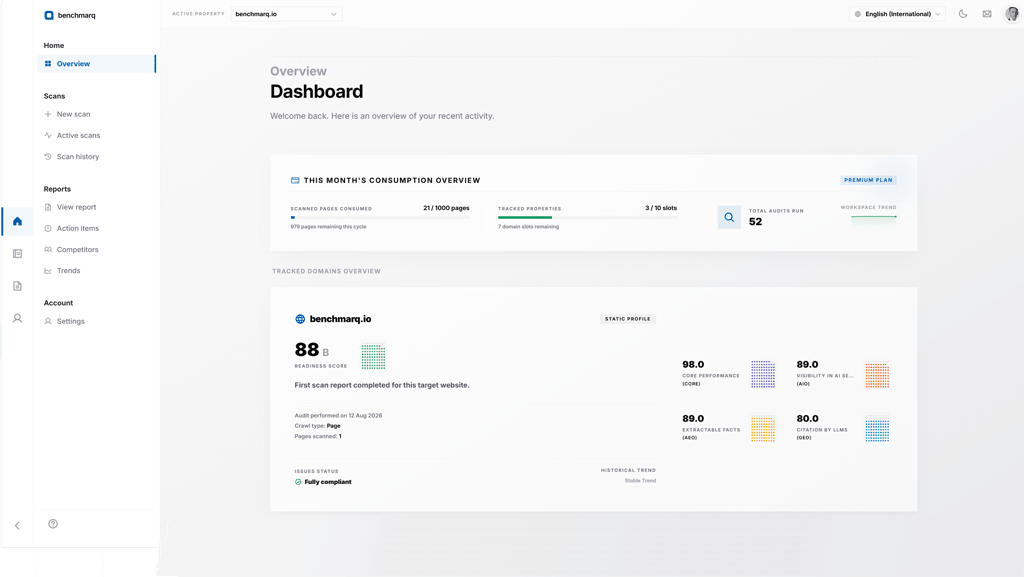
The main dashboard serves as your mission control for monitoring domain portfolios.
Track real-time monthly page credit consumption, review active domain health statuses, and trigger instant re-scans with a single click.
Configure workspace settings and team seats
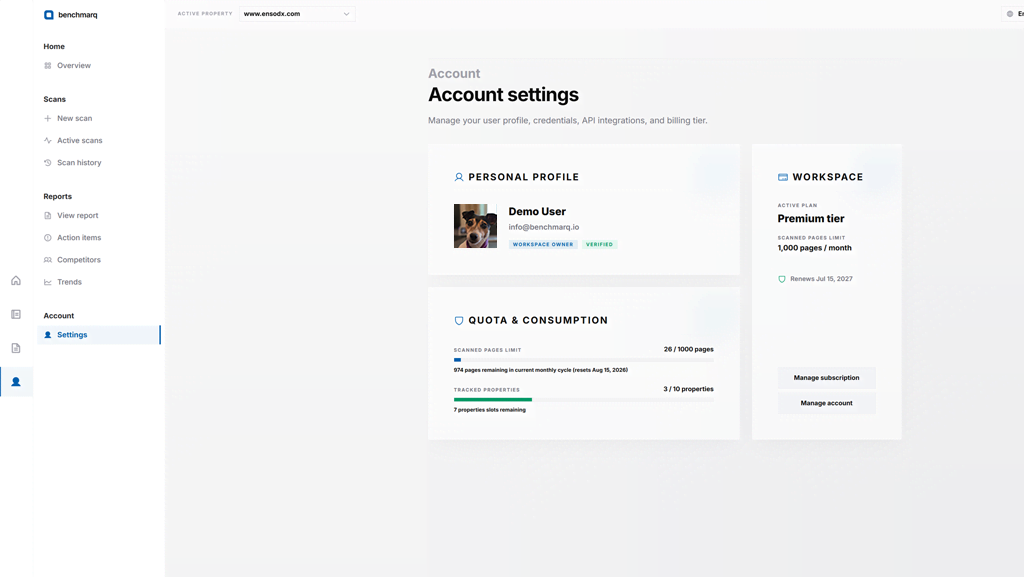
Manage billing, consumption limits, and team access from Account Settings.
Upgrade self-serve to Standard or Premium to expand monthly page capacity and unlock competitor tracking slots.
Advanced & Paid Tier Capabilities
Advanced workflow capabilities for active production teams. Action item tracking, multi-domain portfolios, competitor benchmarking, and score history trendlines are unlocked on Standard and Premium plans.
Organize remediation with action items
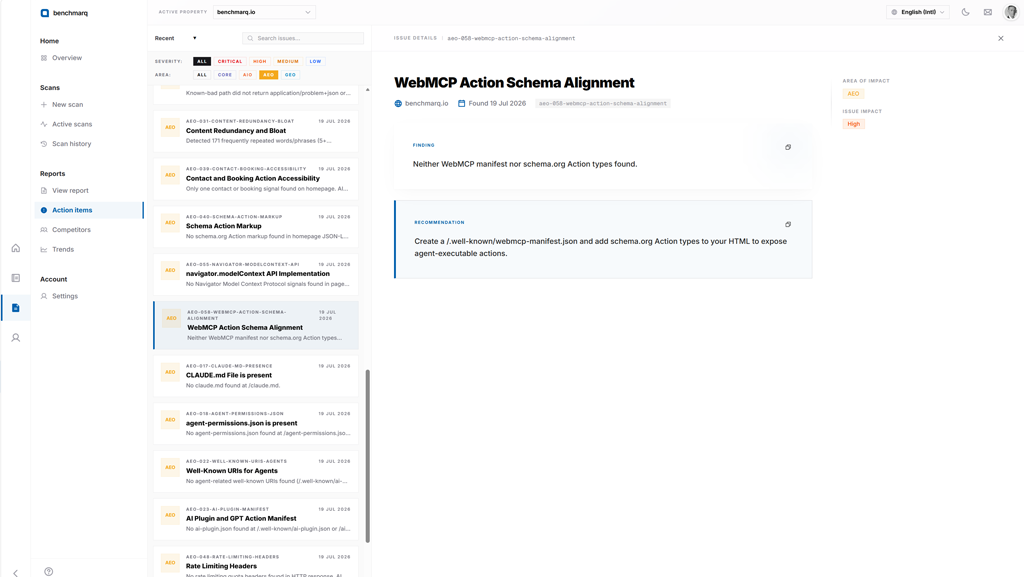
Convert failed audit checks into an organized sprint backlog with our Action Items workflow.
Filter deductions by track, severity tier, or assignment status to prioritize high-impact schema fixes and crawler rule deployments.
Benchmark competitors side-by-side
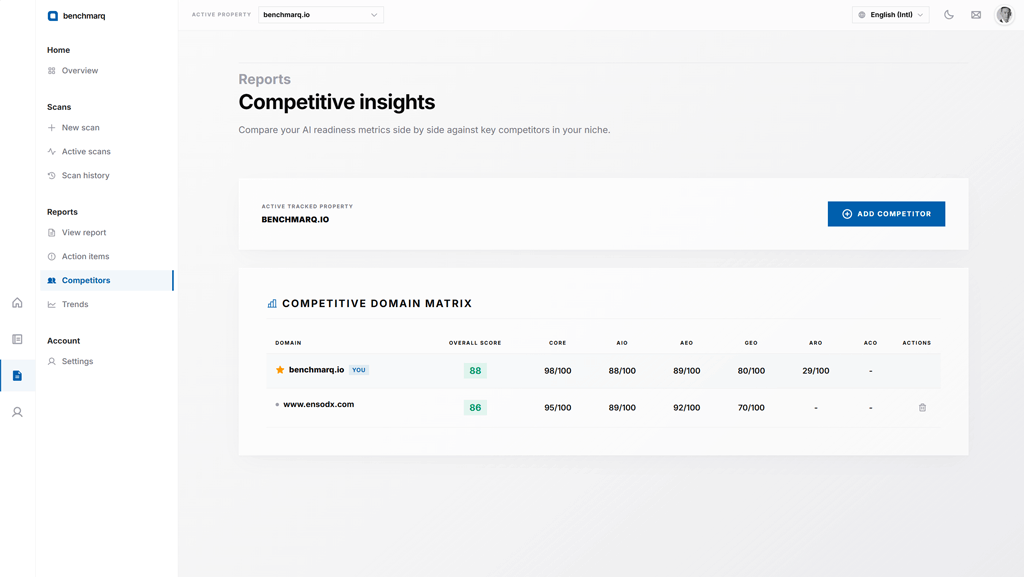
Add up to 4 competitor domains to benchmark your readiness scores against market rivals on identical deterministic criteria (Standard and Premium plans).
The Competitors matrix highlights track-level score deltas and isolates the specific checks where competitors hold technical advantages.
Analyze score history and prevent regressions
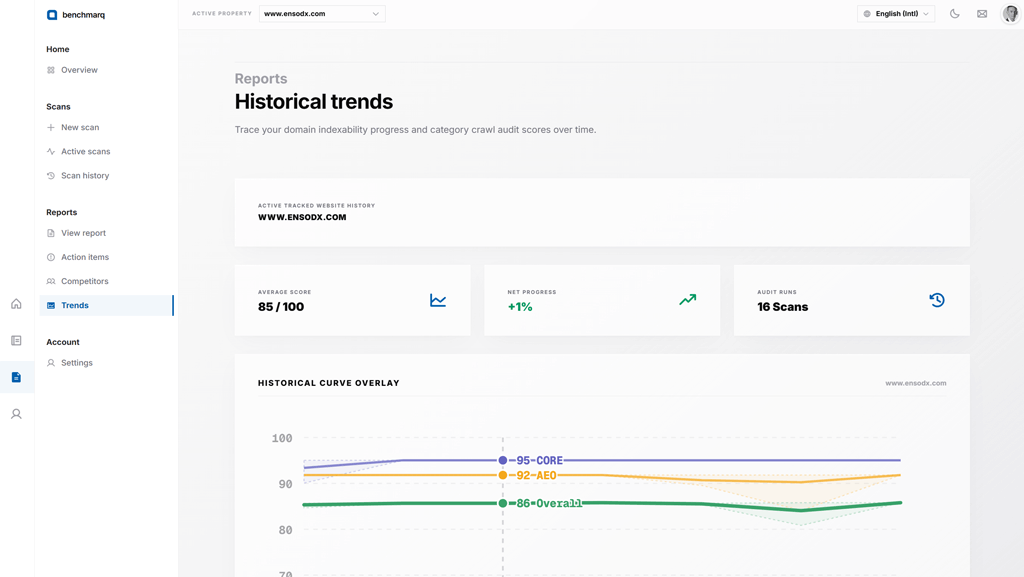
Track composite and track scores across every software deployment using historical trendlines (Standard and Premium plans).
Verify that frontend releases improved entity discovery and catch crawler blocks or schema regressions before they impact search visibility.
Ready to begin? Start free or sign in. Free tier includes 4 scanned pages every month.
Explore platform architecture: Web Workspace, Structured Reports, Benchmarq MCP, and Pricing Plans.
How is the readiness score calculated?
Each of our four standardized diagnostic tracks (GEO, AIO, AEO, and CORE) is scored independently from 200+ rule-based tests against established web standards for how AI search, answer engines, and agents find, read, and use a page. The track scores combine into one composite 0–100 benchmark.
- Every deduction links directly to a failed check with severity weights and verified code guidance.
- 100% deterministic rules with zero generative AI hallucinations: identical website code always yields identical scores. Read our deep-dive on transparent scoring.
- Specialized modules (Agentic Commerce and Agentic Apps) run as isolated diagnostic evaluations so they never distort your baseline readiness benchmark.